


| . | Jumpman Lives! |
. |
| . | Level
Editor
Jumpman Lives! was the first Apogee game that included a level editor with the registered version. I'll explain how to make a simple level here. The nice thing about Jumpman Lives! editor is the ease of use and the ability to test out your level with a press of a button. Controls in editor:
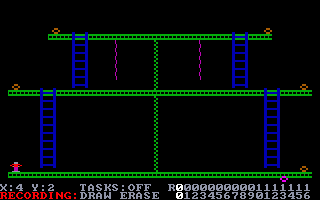
To the right is a level I made in about one minute. This is a screenshot of the actual editor, just draw with a mouse what you want on the screen. Sound easy? It is! Editor Quick Start: From the main menu, press E for editor then press 1 to enter the editor. Now you are ready to "draw" your level. If your cursor seems stuck in the bottom menu, press spacebar to move it into edit mode. Your cursor should be a bomb, simply press your left button to add a bomb and press your right button to remove a bomb. Next try pressing 1 - 6 to see the different objects you can place in your level. Your cursor should change to whatever object you are selecting. When you are ready, press T to try out your level. When you are finished press S to save your level. Now you must add your level to a library. In Jumpman Lives! a library is like a new episode for your levels. Press F1+F2 to exit out of your editor. At the main editor menu, select 3 for Library Manager. Here you can add or remove levels from your library. Select 2 for store screens. Type in the name of your level and add it. Now you will be able to play it just like the other levels in the game! Go to the main menu, select new game, and your "episode" name should be listed. Select it and have fun! Your level is giving a number code and is saved as a .jml file. For more information on the editor and library manager, see the documentation inside the game.
|
. |
 Spacebar: Toggle Edit/Options modes